
TopLang Monitor Brightness Switch 1.0.2 | Size: 811.05 KB
Language: English
Adjust monitor brightness and contrast quickly by switching to predefined display modes. If you use different monitor brightness and contrast for day and night, for work and playing games, watching movies, and you adjust the monitor by either using its OSD menu, or using a software that provides some slider bars for you to drag. If you are tired of doing it, now it's time to change.
No longer OSD menu, no slider bars, just click to switch. With Monitor Brightness Switch (MBS), you can switch your monitor to predefined display modes with simple clicks. Those display modes are defined by yourself for your monitor, each of them contains specific brightness and contrast for a different environment or situation.
Use it as a taskbar pinned app
We have been using this convenient tool every day, and found out that using it as a pinned program on the taskbar, is better than using it from the desktop context menu. After MBS was pinned to the taskbar, you can use its quick menu by a single click.
Use it from desktop context menu
Monitor Brightness Switch can be added to the desktop context menu, so that you can right-click anywhere on your desktop, choose it in the context menu to show and switch display modes, without the need to launch it from start menu or desktop shortcut icon.
Change brightness with clicks
Monitor Brightness Switch isn't working by providing some slider bars for you to drag to adjust display brightness/contrast. That can sometimes be annoying.
It lets you define display modes with different brightness and contrast for different environments or situations.
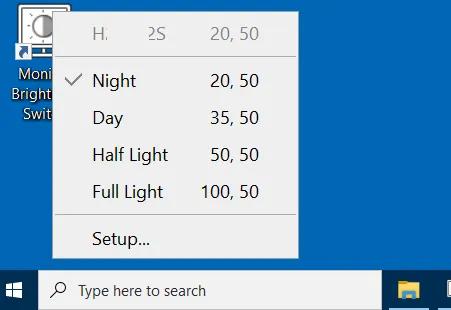
When you launch the software, a main menu pops up with those display modes. You choose one of them to switch brightness and contrast of the monitor to the values defined in that mode.
Supports multiple monitors
Monitor Brightness Switch works well with multiple monitors.
The main menu will list all the monitors connected to your computer, and you can choose any of them to operate on. When you define display modes, you can set "target monitor" to any mode to limit it to the specific monitor.
Change brightness of monitor hardware
Monitor Brightness Switch changes brightness/contrast of the monitor hardware directly, not some software-simulated effects.
This ensures the monitor always works in its designed state and there won't be any kind of color distortion.
Manage and define your display modes
You can modify existing display modes and create new ones using the setup window.
The software will be installed with several example display modes, which can be used directly but normally shouldn't. Why? Because every monitor has its own luminance. For example, the mode "Night" (20% brightness) can be too bright on some monitors, but too dark on some others. Therefore, the suitable brightness value for "Night" depends on the specific monitor.
Another reason to define your own display modes, is that everyone's requirements vary. Rather than the examples "Day", "Night", "Half Light" and "Full Light", you may want to define display modes like "Work", "Playing Games", "Watching Movies", etc.
HOMEPAGE:
Code:
https://www.toplang.com/mbs/FREE DOWNLOAD LINKS:
Code:
https://rapidgator.net/file/3936b3994b7d070953a4b2e2f7c6ecfb/TopLang_Monitor_Brightness_Switch_1.0.2.rar
Code:
https://nitroflare.com/view/6163C7DA6D5109E/TopLang_Monitor_Brightness_Switch_1.0.2.rar